If you've ever needed to combine a few PDFs — three pages of a contract, two scanned receipts, a stack of bank statements — you've probably seen the pattern. You search for "merge pdf", land on a page that wants you to upload your files, and hand sensitive documents to someone's server with a checkbox promising they'll be deleted later.
There's a faster way that doesn't require trust. Modern browsers can do the entire merge locally — no server, no upload queue, no email gate. This guide walks through what merging actually does, how to do it in Toolbelt without uploading anything, and when a different tool (like macOS Preview) is the better answer.
What "merging" actually does
Merging takes two or more PDF files and stitches them into a single file with all the pages in order. That's it — no re-encoding, no compression, no quality loss. The internal page objects from each source PDF are copied into a new container in the order you specify, and the new container is saved as one file.
This means a few things that aren't obvious if you've never thought about PDFs:
- Page count is the sum. Merging a 3-page PDF and a 5-page PDF gives you exactly 8 pages, never more, never less.
- File size is roughly the sum, but slightly larger because the new container has its own header and cross-reference table. A 10 KB + 20 KB merge will land around 30–32 KB.
- Bookmarks, hyperlinks, form fields, and digital signatures are preserved if the merger is well-implemented. Toolbelt's is — it copies pages with their full annotation tree intact.
- Page rotations are preserved per page. If one of your input PDFs has sideways pages, those stay sideways in the merged file. Use Rotate PDF before merging if you need everything upright.
Merging never loses quality, never re-encodes images, and never compresses your file. If a tool claims it does any of those things during a merge, it's doing two operations at once.
More: how the merge works under the hood
A PDF is a directory of numbered objects — pages, fonts, images, metadata — with a cross-reference table at the end that says where each object lives in the file. Merging two PDFs roughly does this:
- Open both PDFs and pick out the page objects (and any annotations/links those pages own).
- Create a fresh empty PDF container.
- Copy each page object into the new container, rewriting object IDs so they don't collide.
- Build a new cross-reference table for the merged file.
- Save.
Toolbelt uses the open-source pdf-lib library to do this — about 10 lines of code wraps the entire workflow. Because the work is just object copying (not pixel re-encoding), it runs in milliseconds even on big files.
Merge in your browser (no upload, no account)
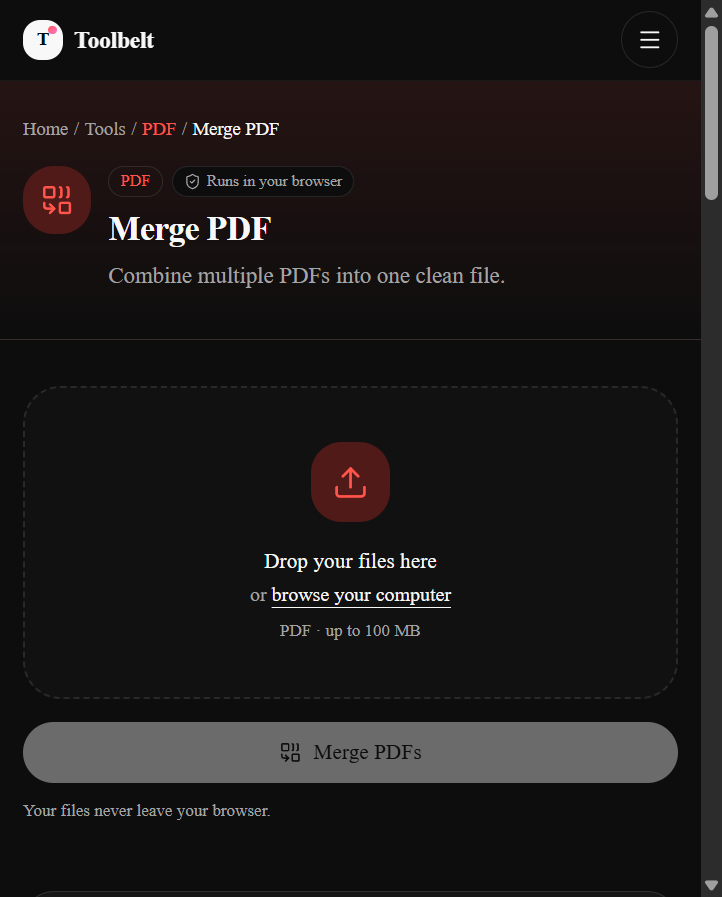
Here's the end-to-end flow on the live tool.
- Drop your PDFs
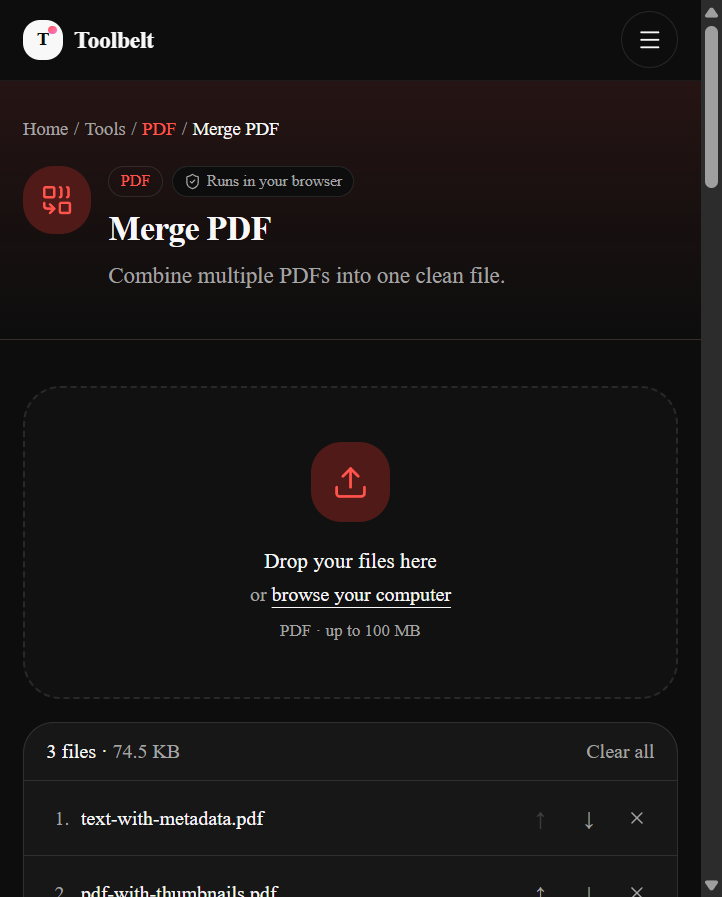
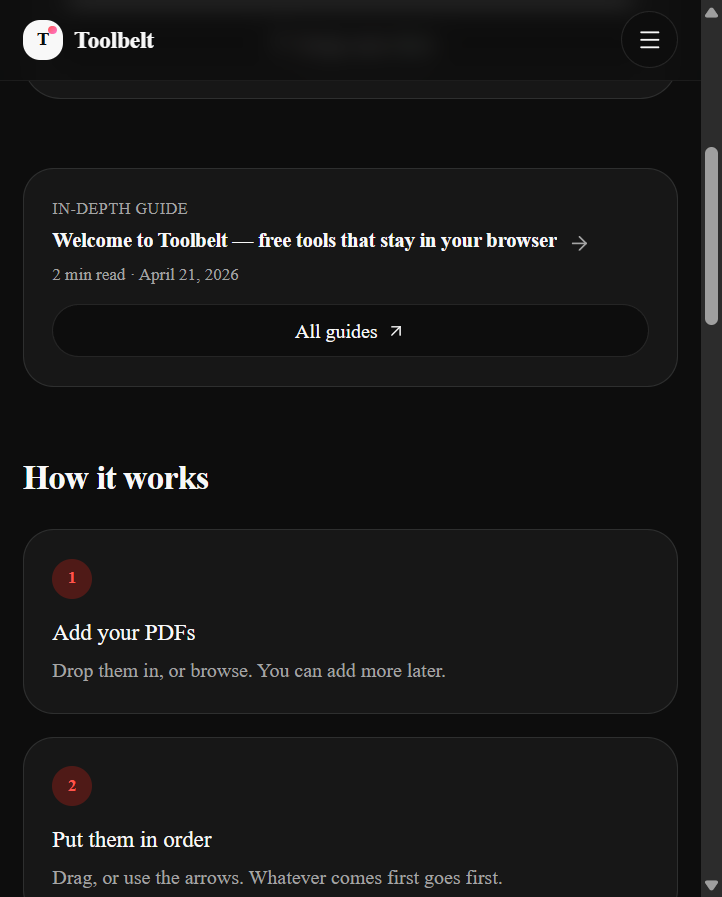
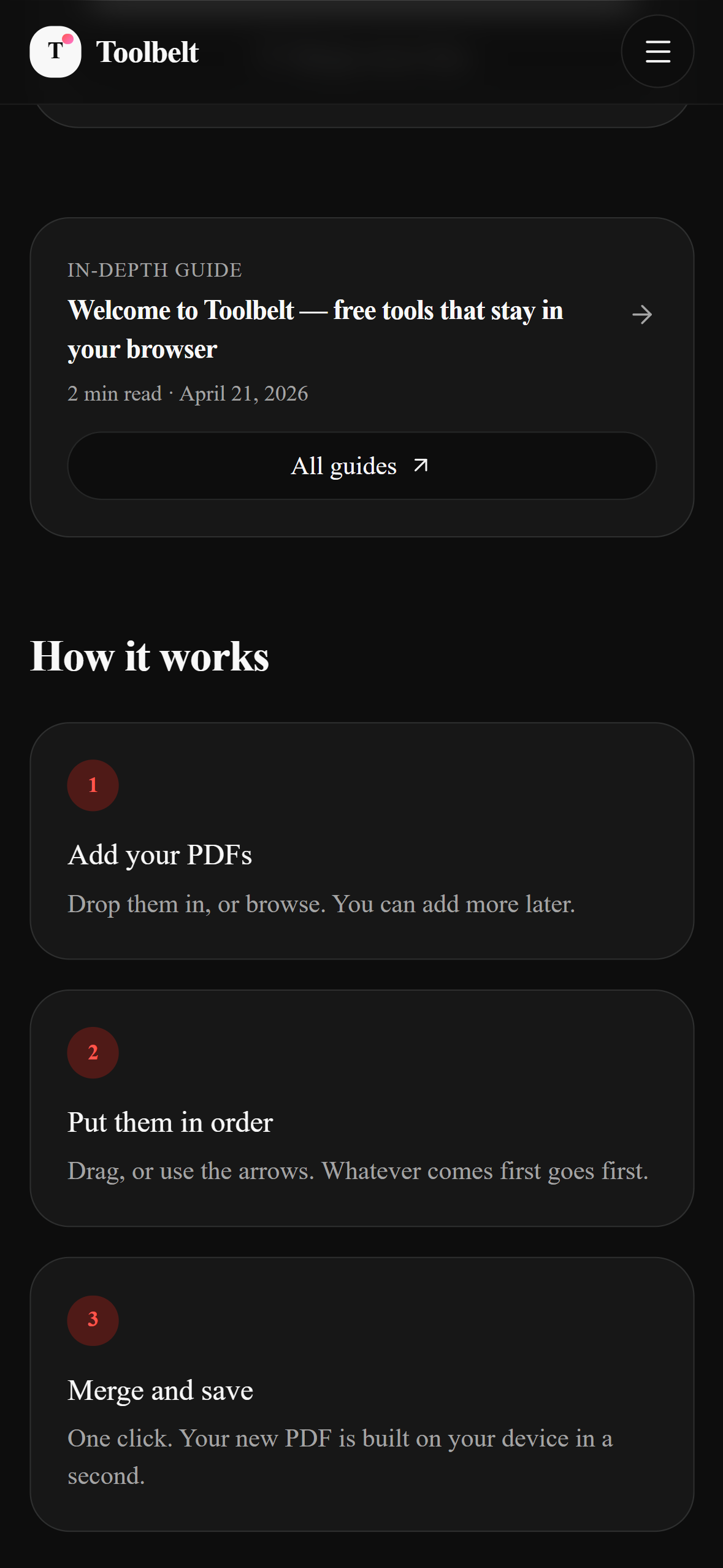
Drag the files in from Finder or Explorer, or click browse your computer. Multi-select works — pick all of them at once. Add more later by dropping additional files; the list grows.
- Put them in the right order
The order on the page is the order they'll appear in the merged file. Use the up / down arrows to reorder, or the × button to remove any file. Aspect-rule of thumb: whatever's at position 1 will be the first page of the output.
- Click Merge
The button label updates to show the count — "Merge 3 PDFs", "Merge 5 PDFs", etc. The work happens locally; on a typical laptop it finishes in a few hundred milliseconds, even for 50+ files.
- Download the result
You get the new filename (
merged.pdf), the total page count, and the final size. Hit Download. There's no watermark, no “Pro” upsell, and no rate limit on how many merges per day.
Combine multiple PDFs into one clean file.
How to verify no upload happened (15 seconds)
Same trick as the rest of Toolbelt: don't trust the marketing page, verify it yourself.
- Open DevTools
Press F12 (Windows / Linux) or ⌘⌥I (Mac). Switch to the Network tab.
- Clear the log
Click the 🚫 Clear button or reload the page so the log is empty.
- Run a merge while watching
Drop your PDFs in, click Merge, click Download. Watch what shows up.
When other tools are the right answer
Honest take: the browser isn't always the right tool. A few cases where you should reach for something else:
- You have a Mac and just need a one-off merge. macOS Preview merges PDFs natively. Open the first PDF in Preview, show the sidebar (View → Thumbnails), drag the other PDFs into the sidebar, save. Same lossless workflow, zero internet required.
- You're merging hundreds of PDFs in a script. Use
pdftk(cross-platform) orqpdf. One command handles a whole directory:pdftk *.pdf cat output merged.pdf. - The files are larger than your phone's RAM (rare — usually means 200 MB+ of PDFs). The browser tab will run out of memory before pdf-lib finishes. Switch to desktop or split the merge into batches.
- You need to insert a specific PDF between specific pages of another. Merging is page-after-page. For surgical insertion, use a desktop editor like Adobe Acrobat or PDFsam.
For everything else — combining 2 to 50 PDFs of normal size, where you don't want the file leaving your device — Toolbelt is the answer.
Merging on mobile
Roughly half our readers will land on this guide from a phone. The good news: the merge tool works exactly the same on iOS Safari and Android Chrome. You drop or pick files via the system file picker, and the result is downloaded to your Downloads folder.
The one caveat is memory. Phones have less RAM than laptops, so the practical cap is around 100 MB of total input. For most use cases (a few scanned receipts, a couple of contracts, a stack of bank statements) you're nowhere near that limit.
Why this site doesn't upload your files
I'm Shahzaib Hassan, an AI automation engineer in Lahore. I started building Toolbelt partly because I was tired of the same pattern: searching for a simple file tool, landing on a page that wants an account, uploading a sensitive file, and ticking a "you won't resell my PDF, right?" checkbox on trust. The tools here all run client-side because they can — merging two PDFs is just object copying, and your browser is perfectly capable of doing it. If a tool on this site ever needs your data to leave your device (some AI tools will, eventually), it'll be upfront about it and the data will go directly from you to the provider you choose, not through us.
Frequently asked questions
How many PDFs can I merge at once?
Does the merged file keep my links and bookmarks?
Can I reorder the files before merging?
What about merging just specific pages from a PDF?
Does merging compress the result?
Can I merge password-protected PDFs?
Does it work offline?
Combine multiple PDFs into one clean file.