If you've ever tried to compress a PDF before attaching it to an email, you've probably seen the same pattern: every result in Google is a tool that asks you to upload your file. You hand over your tax return, a signed contract, or a pile of medical scans, wait a few seconds, and get back something that's usually 3–12% smaller — and now lives on someone else's server.
That pattern is so universal most people assume it's the only way. It isn't. This guide walks through what PDF compression actually does, when it can and can't help, and how to do it in your own browser without the file leaving your device. I'm going to be unusually honest about what you can realistically expect — most tool pages quietly oversell compression, and users end up disappointed.
The honest math behind PDF compression
Here's the first thing every marketing page glosses over. A PDF is essentially three things stacked together: a container for text and fonts, any embedded images, and metadata about who made it and when. Lossless compression — the kind that doesn't touch picture quality — can only shrink the container, never the pictures inside.
That means the savings ceiling depends mostly on what's in your file:
- Pure text PDFs (invoices, bank statements, contracts, ebooks): typically 5–15% lossless savings. Text is already tightly packed; there's not much slack to remove.
- Text with a few images: 10–25%. Metadata and structural overhead is a bigger share of the file.
- Image-heavy PDFs (scanned documents, magazines, decks): 2–8% lossless. The images dominate the size, and lossless can't touch them.
On our recorded test — an 18.5 KB text PDF deliberately stuffed with metadata — Toolbelt's compressor saved 32.4%. That's an above-average number for a reason: the test file was synthetic. Real-world PDFs you pick off your desktop will usually land in the 5–15% band.
If a tool promises “50% smaller, guaranteed, no quality loss” on a real-world PDF, it's either re-encoding the images (which is not lossless) or it's bending the truth. Compressing the same file twice rarely helps — once the slack is gone, it's gone.
More: the three techniques that make a compressor lossless
Good lossless compressors all use the same three techniques. None of them touch a pixel:
- Strip unused metadata. Title, author, subject, keywords, creator tool, modification dates, custom XMP packets. These can add kilobytes and tell nobody anything useful about the content.
- Remove embedded page thumbnails. Some export tools (older Word, Publisher, certain scanners) embed a low-res preview for every page. Modern PDF readers generate these on the fly, so the embedded copies are pure waste — often 8–30 KB per page.
- Re-pack with object streams. PDF internally is a directory of numbered objects. Modern writers bundle small objects together via compressed object streams; older PDFs don't, and repacking can shave another few percent.
The text stays selectable, scanned pages still OCR the same, and forms / hyperlinks / annotations / signatures are preserved bit-for-bit.
Compress in your browser (no upload, no account)
Toolbelt's Compress PDF runs all three lossless techniques client-side. The whole flow takes a few seconds.
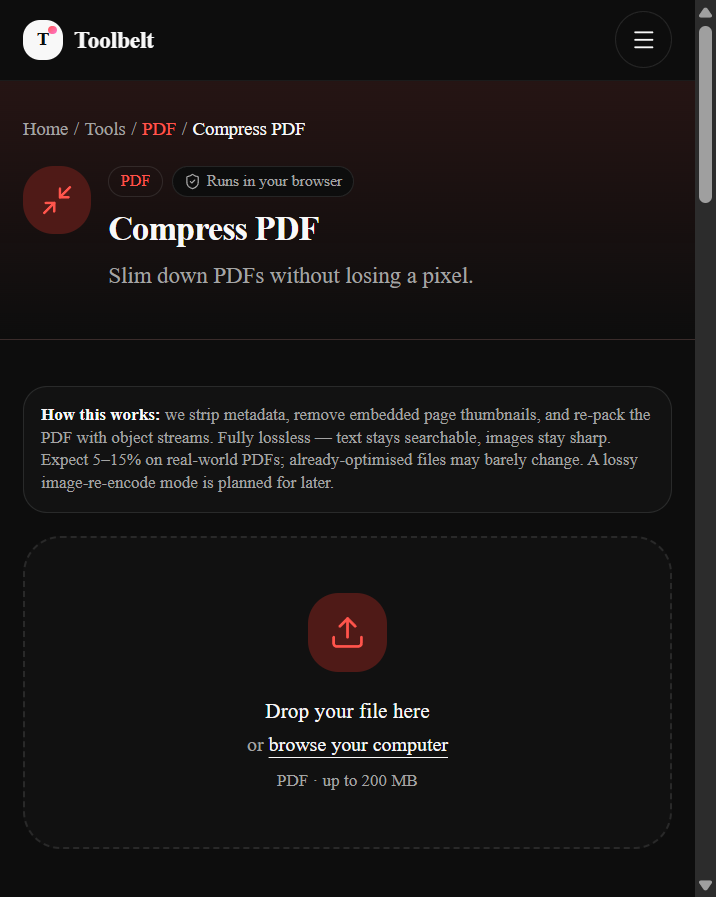
- Drop your PDF
Drag a PDF in from Finder or Explorer, or click browse your computer. The free ceiling is 200 MB — bigger than what most paid tools allow on their free plan, because there's no server cost when the work happens locally.
- Click Compress PDF
The file stays on your device. The button flips to Compressing… while the library strips metadata, removes embedded thumbnails, and re-packs the file with modern object streams. Typical 20-page PDF: 1–3 seconds on a laptop, 4–8 on a phone.
- See the honest verdict and download
The result card shows the before/after size, the percentage savings, and exactly what was stripped. If your file was already optimised, the card says so — "Already lean · No size change this time" — instead of shipping you back a copy with a 0.1% "improvement" and a Pro-tier upsell.
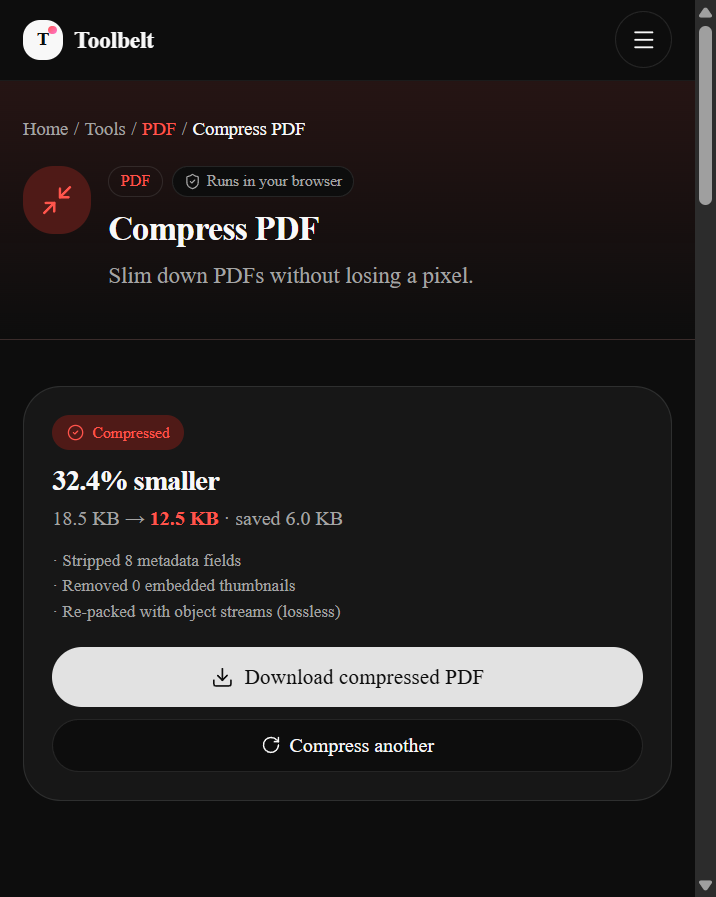
Slim down PDFs without losing a pixel.
How to verify no upload happened (15 seconds)
This is the part no upload-based tool can replicate. Any claim about "privacy" on an upload tool is asking you to take their word for it. With a client-side tool, you don't have to.
- Open DevTools
Press F12 (Windows / Linux) or ⌘⌥I (Mac). Switch to the Network tab.
- Clear the log
Hit the 🚫 Clear button or reload the page so the log is empty.
- Use the tool, then watch the log
Drop your PDF in, click Compress, click Download. Watch what shows up in the Network tab during those few seconds.
When lossless isn't enough
Sometimes you need to fit a 200-page scanned book under a 10 MB email limit, and lossless gets you to 180 MB. In that case you genuinely need to re-encode the pictures at a lower quality — that's lossy compression, a separate operation with a different trade-off.
Honest answer: Toolbelt doesn't have a lossy PDF compressor yet (it's on the roadmap). For now, three workable alternatives:
- If the PDF is mostly scanned pages: extract them as images, run them through Toolbelt's Compress Image at 75–85% quality, then merge them back. Tedious, but local and precise.
- If you live on the terminal: Ghostscript handles this in one command —
gs -sDEVICE=pdfwrite -dPDFSETTINGS=/ebook -dNOPAUSE -dQUIET -dBATCH -sOutputFile=out.pdf in.pdf. Free on every platform. The/ebooksetting is the sweet spot;/printerkeeps more detail,/screenis more aggressive. - If the file is sensitive and you don't want to install anything: macOS Preview has a built-in Reduce File Size Quartz filter (File → Export → Quartz Filter). It's lossy and not tunable, but it runs locally.
None of these require uploading your file.
Common mistakes that make things worse
- Don't "compress" a PDF by printing to PDF. Printing flattens text into a rasterised image, removes search and selection, and usually grows the file rather than shrinking it.
- Don't rename a JPG to
.pdf. That's a broken file PDF readers will reject. Use a proper image-to-PDF converter. - Don't compress a PDF that's already under your target. If your email limit is 25 MB and the PDF is 3 MB, skip the step. Every compression cycle risks subtle layout quirks in downstream viewers; only run it when you genuinely need the savings.
Why this site doesn't upload your files
I'm Shahzaib Hassan, an AI automation engineer in Lahore. I started building Toolbelt partly because I was tired of the same pattern: searching for a simple file tool, landing on a page that wants an account, uploading a sensitive file, and ticking a "you won't resell my PDF, right?" checkbox on trust. The tools here all run in your browser because they can — a modern browser is a surprisingly capable runtime, and nothing about compressing a PDF needs a server. If a tool on this site ever needs your data to leave your device (some AI tools will, for obvious reasons), it'll be upfront about it and the data will go directly from you to the provider you choose, not through us.
Frequently asked questions
What's the maximum file size Toolbelt's Compress PDF can handle?
Why did my PDF only shrink by 2%?
Is text still searchable after compression?
What about password-protected PDFs?
Can I compress an entire folder of PDFs at once?
pdf-lib library this tool is built on.Does Toolbelt work on mobile Safari?
Is the compression logic open source?
pdf-lib, which is open source. Toolbelt's UI layer is private, but the recipe is straightforward — strip Info dict entries, delete Thumb references, and save with useObjectStreams: true. Roughly 50 lines of pdf-lib code.Slim down PDFs without losing a pixel.